
Starting with a new system shouldn't feel like another task added to your first day.
For a caregiver joining an agency that uses ShiftDove, the process begins with something familiar: an invitation in your inbox.
From there, a few simple steps take you from receiving your invitation to having ShiftDove readily available on your phone.
Here's what that first experience looks like.
It Starts With an Invitation
Your administrator sends you an invitation to join ShiftDove.
Once it arrives, check your inbox and look for the ShiftDove invitation. Can't find it? Your spam or junk folder is worth checking too.
Inside the email, you'll find an Accept Invitation button.
Tap it, and you'll be taken to the ShiftDove page where you can begin activating your account.
You can open the link through your default browser or another supported browser.
Activate Your Account
If you're joining ShiftDove for the first time, you'll be asked to create a password.
Choose a password that meets the requirements and make sure the password and confirmation match before activating your account.
Once everything checks out, select Activate Account.
That's it. Your account is ready.
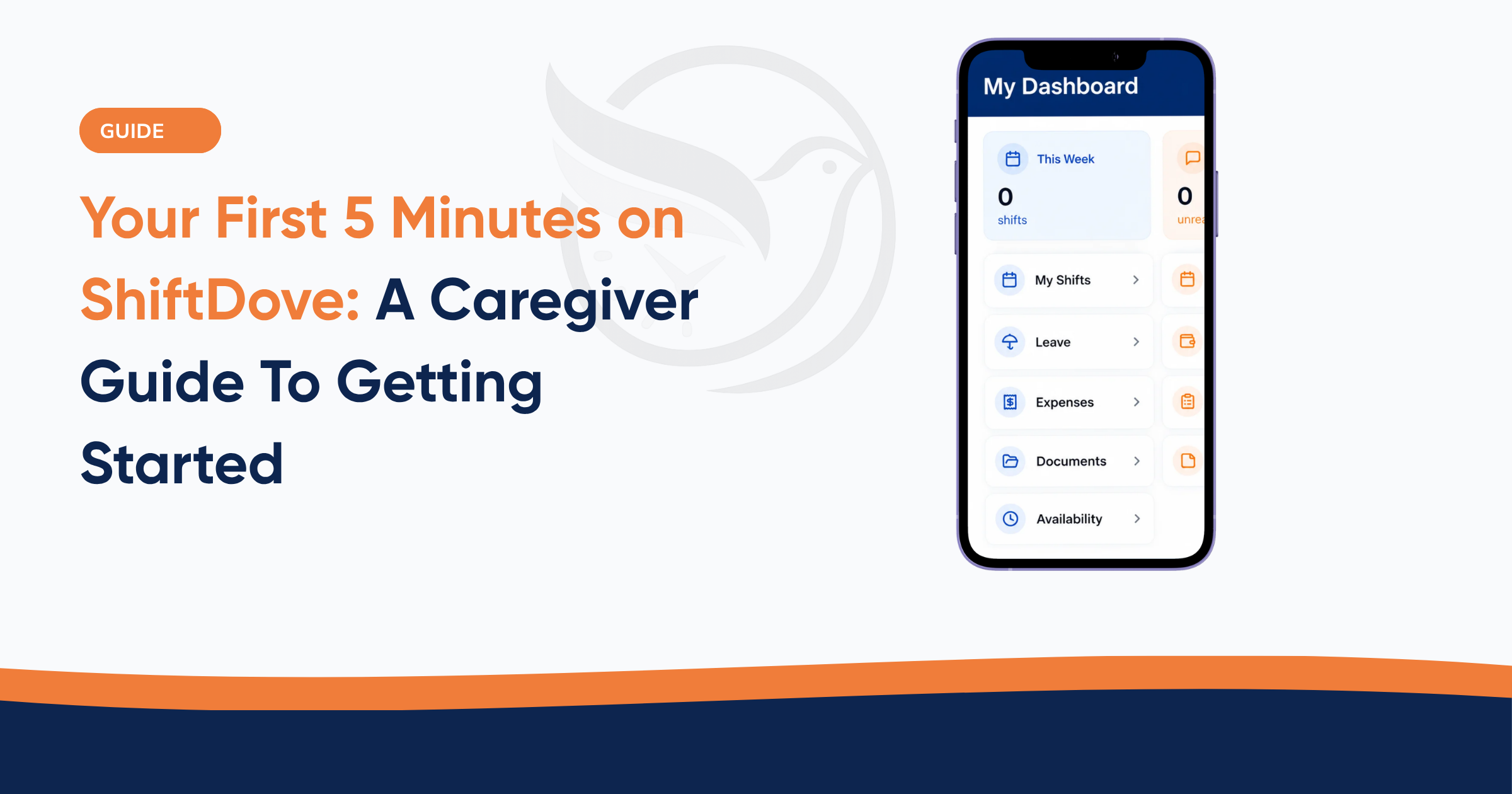
You'll now have access to your ShiftDove staff dashboard; the place where you'll begin managing your experience with the platform.
Already have an account?
You don't need to keep using the invitation link. You can go directly to the staff login page and sign in with your email and password.
What If Something Goes Wrong?
Sometimes the first attempt doesn't go exactly as planned.
If your passwords don't match, ShiftDove will let you know so you can correct them before continuing.
You may also encounter an invalid or already-used invitation link. If that happens, the best next step is to contact your administrator and request a new invitation rather than repeatedly trying the same link.
Once your account is successfully activated, you won't need that invitation every time you want to access ShiftDove.
And that's where the next step makes things even easier.
Put ShiftDove on Your Home Screen
If you're using ShiftDove regularly, why keep opening your browser and typing the website address every time?
You can add ShiftDove directly to your phone's Home Screen.
On your iPhone, open the ShiftDove staff portal in your browser.
From there:
- Tap the Share button.
- Select View More.
- Choose Add to Home Screen.
- Tap Add.
You'll now see the ShiftDove icon alongside your other apps.
The next time you need to access your account, simply tap the icon.
Instead of searching for the website, you're one tap away from your staff portal.
Turn On Your Notifications
Getting into ShiftDove is only part of the experience.
You also want ShiftDove to keep you informed when something changes.
After signing in, look for the Enable Notifications option at the top of your dashboard.
If you don't see it immediately, don't panic. Refresh the page by pulling down on your screen or using your browser's reload option.
Once notifications are enabled, ShiftDove can help keep you updated with important information such as shift notifications, shift updates, reminders, and other relevant alerts.
That means you don't always have to remember to check the platform yourself. The platform can help bring important updates to your attention.
From Invitation to Your First Shift
In just a few steps, you've gone from receiving an invitation to having ShiftDove ready on your phone.
Accept the invitation.
Activate your account.
Access your dashboard.
Add ShiftDove to your Home Screen.
Enable notifications.
The point isn't simply to get caregivers logged into another piece of software.
It's to make the starting point simple enough that they can get on with the work that brought them there in the first place.
And once ShiftDove is sitting on your Home Screen, your next shift is only a tap away.
Ready When You Are
A caregiver shouldn't have to spend their first few minutes figuring out how to navigate a complicated system.
ShiftDove is designed to give caregivers a straightforward starting point and a direct path into their staff portal.
And this is only the beginning.
Once you're inside, there's much more to explore, from accessing your shifts to staying connected with the information you need throughout your workday.
Welcome to ShiftDove.
Ready to give your caregivers a more connected way to manage their work?
Explore ShiftDove and see how the Staff Portal brings shifts, time tracking, documentation, communication, availability, and more into one place.
Get started with ShiftDove →
Early access for home care agencies → https://shiftdove.com We set every agency up personally, and your first 30 days are free.